Get started with Croppy
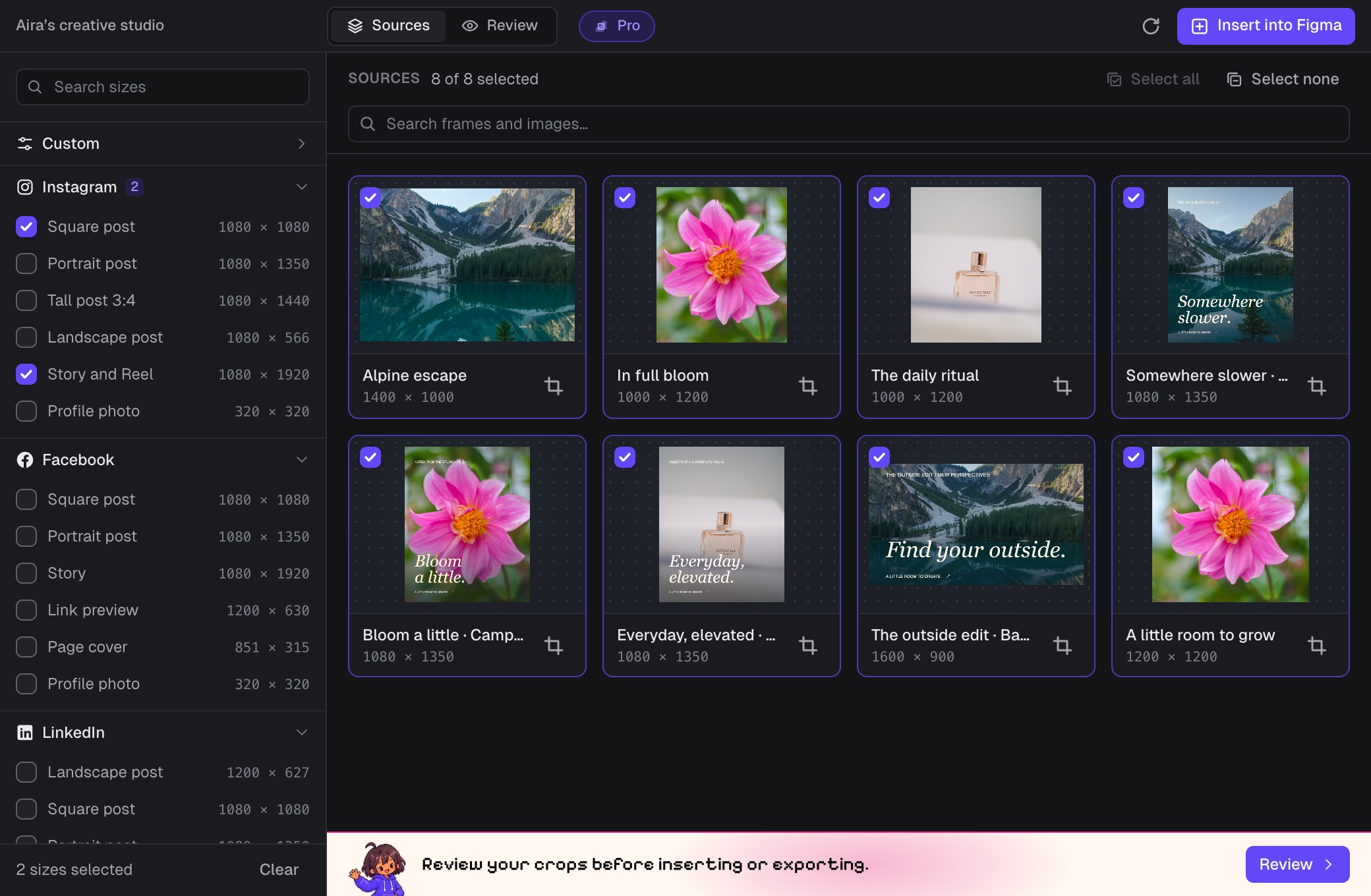
Croppy is a Figma plugin that batch crops, resizes and exports your frames and images into every size you need. Pick your sources, choose sizes, review each crop, then insert the results into Figma or download a ZIP.
Install and activate Croppy
- Install and runAdd Croppy to Figma and open it in a design file.
- Activate Croppy ProYour free trial, buying a plan, and license keys.
How it works
- Choose sources. Croppy lists the visible frames, components and images on your current Figma page. Learn about sources.
- Pick sizes. Tick any of the 61 preset sizes or add your own. See all sizes.
- Review. Check every crop and adjust its focus, scale or anchor. Review crops.
- Insert or export. Add the results to a new Figma page or download them as a ZIP. Insert and export.
Using Croppy
- Choose sourcesWhich frames and images Croppy finds, and how to pick them.
- Pick sizes61 preset sizes in 12 groups, plus your own custom sizes.
- Review cropsSmart, Face and Anchor focus, Fill or Fit, per image.
- Insert and exportAdd results to Figma or download a ZIP of JPG or PNG files.
- File names and foldersBuild names and ZIP folders from layer, size and dimensions.
- Manual cropCrop, resize, rotate and flip a single image. Always free.
- Crop SelectionRun Croppy on just the layers you have selected.
Help
- Free vs ProWhat the trial includes and what Pro unlocks.
- TroubleshootingWhat Croppy's messages mean and how to fix them.
- Privacy and securityWhat stays on your computer and what Croppy stores.
- LimitsMaximum sizes and image counts, and why they exist.
Croppy features
- Batch crop and resize many frames and images into many sizes in one run.
- 61 preset sizes in 12 groups: Instagram, Facebook, LinkedIn, X, YouTube, TikTok, Pinterest, Display Ads, App Stores, Web, Video and Print (at 300 DPI).
- Custom sizes, with an Auto side that keeps each image's proportions.
- Smart focus (content-aware), Face focus, or a fixed Anchor position for each image.
- Fill to crop edge to edge, or Fit to show the whole image on a background.
- Insert results into Figma on a new page, grouped into a frame per size group.
- Download a ZIP of JPG or PNG files, with adjustable JPG quality and lossless PNG compression.
- Custom file names and folders built from the layer, size group, size name and dimensions.
- A manual crop editor with crop, resize, rotate, flip and zoom. Always free.
- Crop Selection, to run Croppy on only the layers you have selected.
- Settings saved on each Figma page, so they are there when you come back.
- Images are processed on your computer and never uploaded.