Choose sources
Sources are the frames and images Croppy crops. Croppy finds them on your current Figma page automatically.
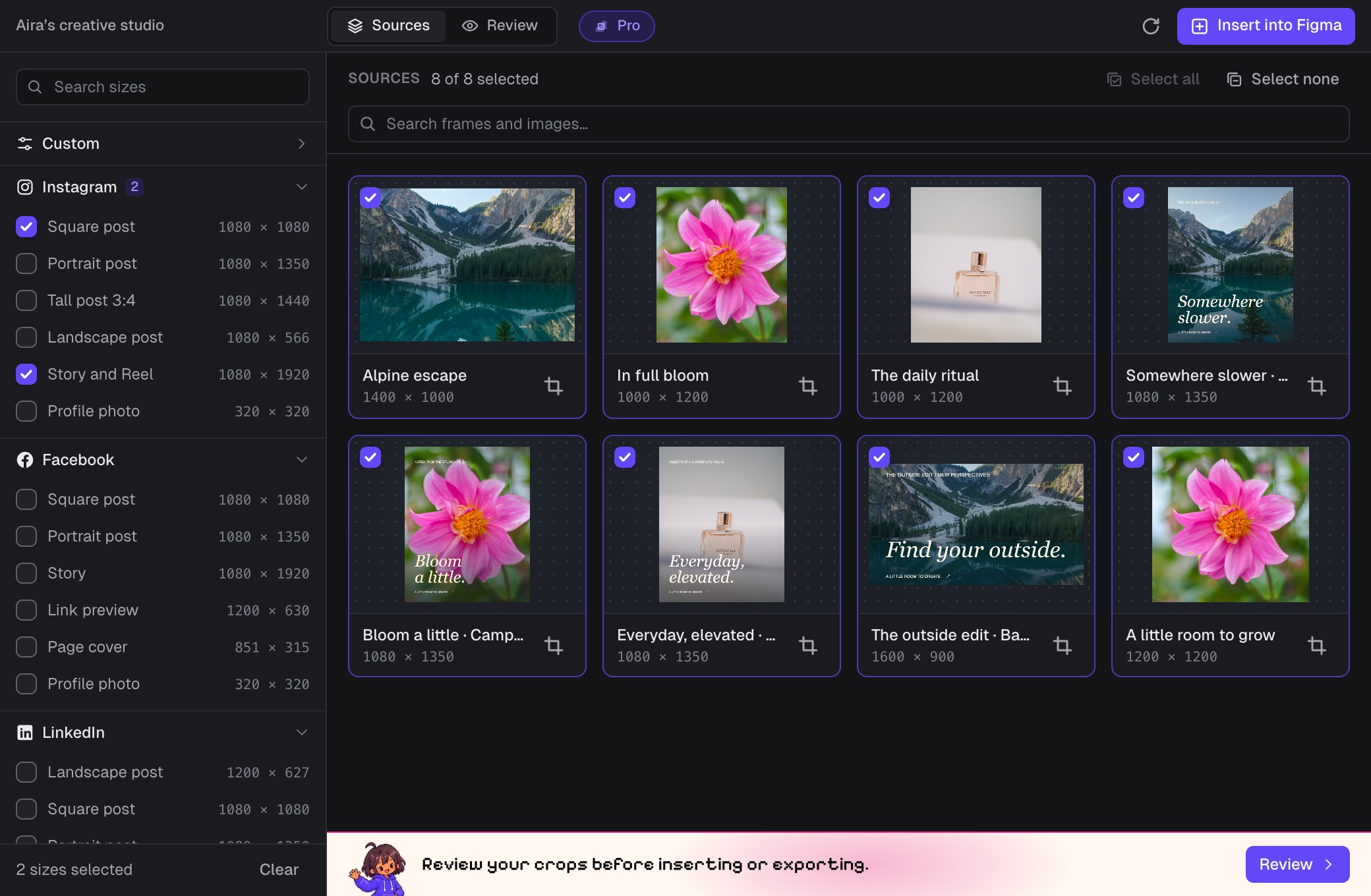
What Croppy finds
When Croppy opens, the Sources tab lists every visible:
- top-level frame, component and instance on the page,
- layer with an image fill that is not already inside one of those,
- layer that has its own export setting, wherever it sits.
Groups and sections are looked inside, so a frame inside a section still appears. Everything inside a frame is part of that frame's image, so nested layers are not listed again. Hidden layers, and everything inside a hidden layer, are skipped.
Source cards
Each card shows a preview, the layer name, and its size in Figma.
- The checkbox includes or leaves out the source. Every source starts included.
- The crop icon opens the manual crop editor for that one image.
Find and select sources
- Select all and Select none change every source at once.
- Type in Search frames and images to filter by name. While you search, the buttons become Select shown and Deselect shown and only affect the results.
- Searching never changes which sources are selected.
Keeping up with your page
- Croppy updates the list as you add, change or delete layers. If a preview looks out of date, click the Refresh button next to Insert into Figma.
- Switch to another Figma page and Croppy loads that page's sources and settings.
Next step
With at least one source selected, Aira appears at the bottom of the window. If you have not picked a size yet, she asks you to choose one from the left panel. Once you have, click Review to check your crops.