Crop Selection
Run Croppy on only the layers you have selected in Figma, including layers nested inside frames.
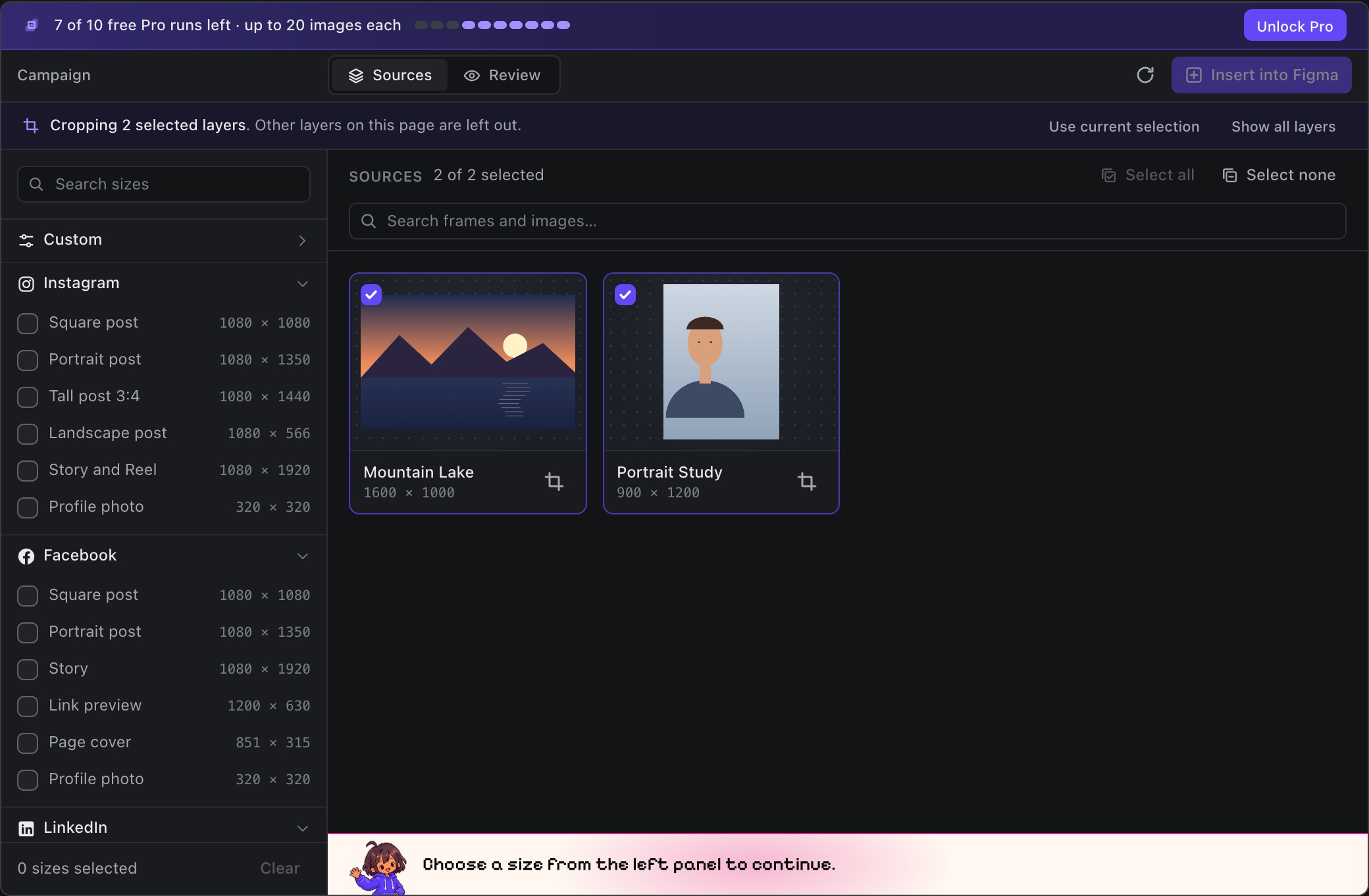
Start a quick crop
- Select one or more layers on the canvas.
- Run Croppy and choose the Crop Selection command.
- Pick sizes in the left sidebar. A quick crop starts with none.
- Click Review, then Insert into Figma, as usual.
Croppy opens straight away, without the welcome screen. A bar at the top shows how many layers you are cropping.
What you can select
- Any visible layer works, including layers inside a frame and whole groups. They do not need an export setting.
- A selected frame or group is cropped as a whole. If you also selected layers inside it, they are not exported a second time.
- Hidden layers and layers with no visible size are skipped.
The selection bar
- Use current selection swaps in whatever is selected in Figma now. Clicking around the canvas does not change the batch on its own.
- Show all layers switches to the normal view of the whole page.
- The Refresh button re-reads only your selected layers.
What gets saved
Custom sizes, export settings, and the crop settings of your selected layers are saved to the page. The page's own ticked sizes, other layers' crop settings and left-out sources are not changed. To work with the whole page, use Open Croppy. See Install and run.